
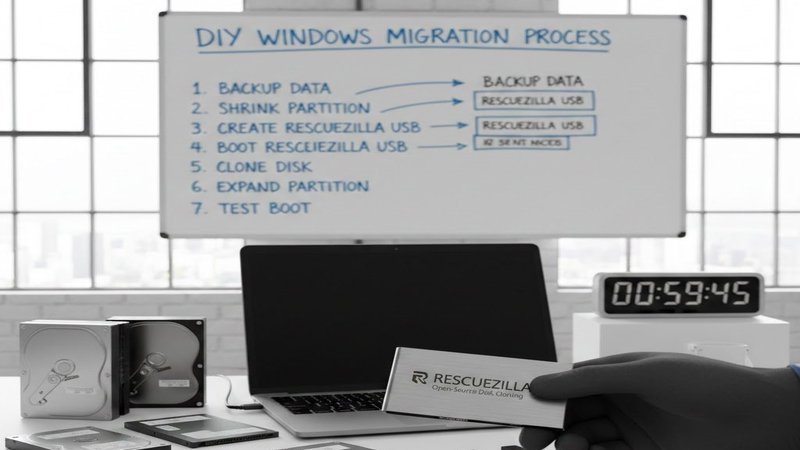
Ever had that sinking feeling when your hard drive starts clicking, your system freezes mid-project, or Windows refuses to boot right when you need it most? Maybe you’ve lost files before, or you’ve put off that upgrade because moving everything over felt like defusing a bomb. Crashes, failed updates, and “I thought I had a backup” disasters have burned almost everyone at least once.
That’s why so many people turn to pricey, polished tools that promise painless migrations—but what if you could do the same thing without spending a cent? In this one, we’ll dive into how to migrate a Windows OS or clone a hard drive onto an SSD or M.2 NVMe using completely free software: we’ll create a bootable USB drive, walk through the cloning process step by step, and tackle the common post-cloning headaches that can show up afterward.
We’re point to; Resucezilla… (yeah, kind of cheezy.)
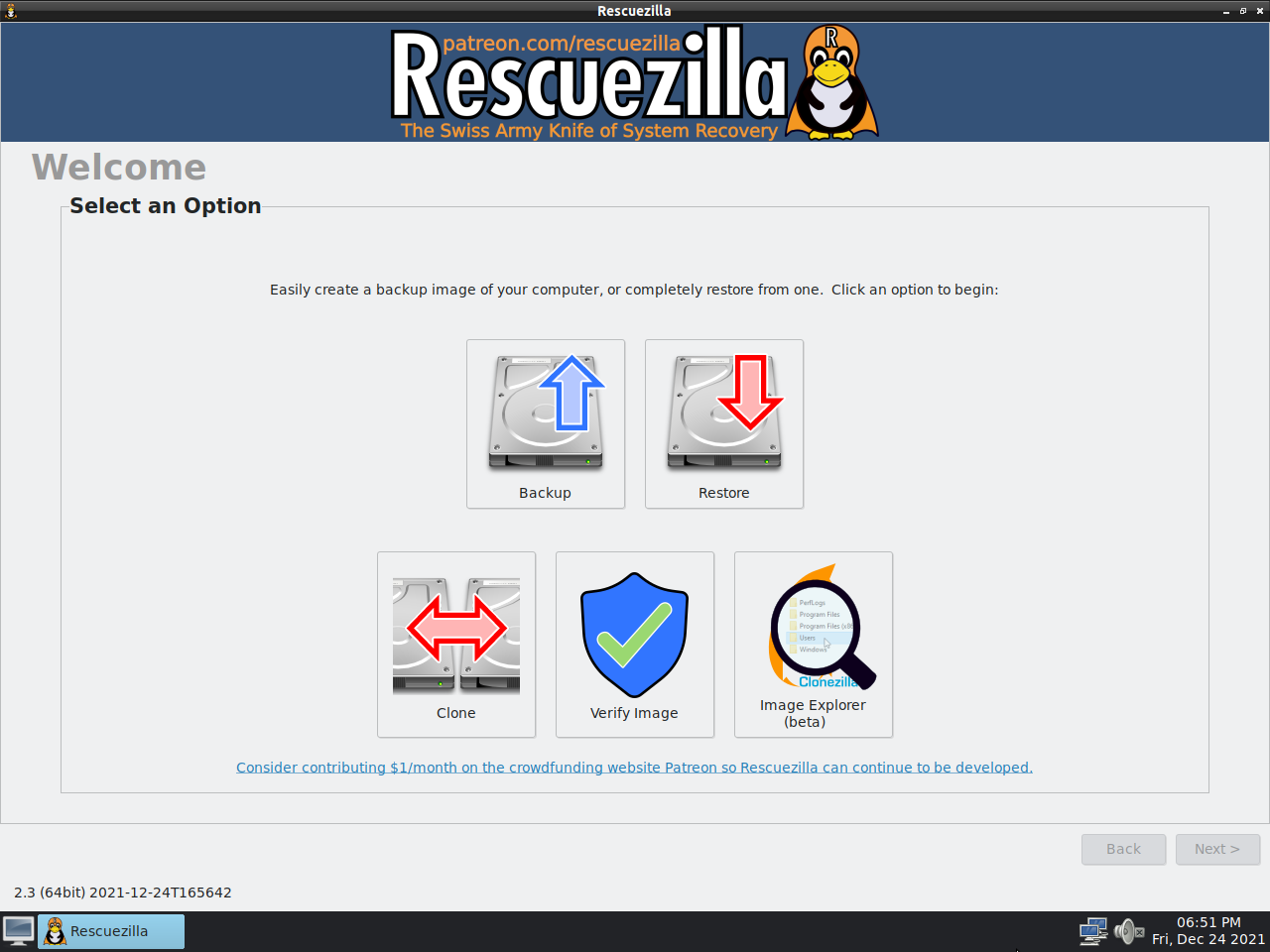
The Process…
First things first, let’s create a bootable USB drive with Rescuezilla:
1. Download the Rescuezilla image file from provided links or sources.
2. Install BalenaEtcher to create a bootable USB drive.

3. Boot from the created USB drive and select “Clone” from available options.
4. Choose the source disk to be cloned, then select the target disk where data will be transferred.
5. Address boot failures or “Missing Operating System” errors by repairing the bootloader or ensuring that the new SSD is set as the primary boot device in BIOS settings.
6. Check UEFI/BIOS configuration to match Legacy or UEFI, SATA mode settings on your Windows and BIOS.
7. In case of Windows activation issues, link your license to your Microsoft account before cloning, re-enter product key if necessary, or contact Microsoft support.
And there you have it…
And there you have it—a tutorial that makes migrating a Windows OS as exciting as watching paint dry. Just remember, even with open-source tools and an easy-to-follow guide, your hard drive is still in the operating room, so proceed with caution and good luck!
The Wrap…
So, if you’re the DIY type who enjoys a challenge or just want to save some dough—go ahead and give this method a try. But remember, when you’re working with delicate hardware, there’s always a chance of things going awry, so brace yourself for potential tech tantrums!
Now, if you liked that, if it spoke to you or if you’re interested in it—drop a comment below and let us know your thoughts. Share this article with others who might benefit from it too, and as always, happy tech-ing!









Leave a Reply